LAZY™ Website Design | Vacation Rental Websites | Get LAZY™
Offer

LAZY™ Website Design

We design every LAZY™ website around your home. This page walks you through how a Lazy website is put together, why each part is there, and how it helps you. Every picture comes from a real Lazy website.

The Lazy cat in pink glasses, stacking website sections

1. Masthead

The top of your home page: the first thing every guest sees.

Guests make up their minds in the first few seconds. That’s why the top of your home page carries your best photo, the name of your place, the key facts and a box to check dates, all in one view. We designed seven arrangements for the Masthead. Some arrangements let one photo fill the whole screen, some set the photo beside the text, and some show several photos side by side. We choose the arrangement that shows your home at its best.

What this means for you: guests see your best photo and the date box right away, so more guests stay, look around and ask you about dates.
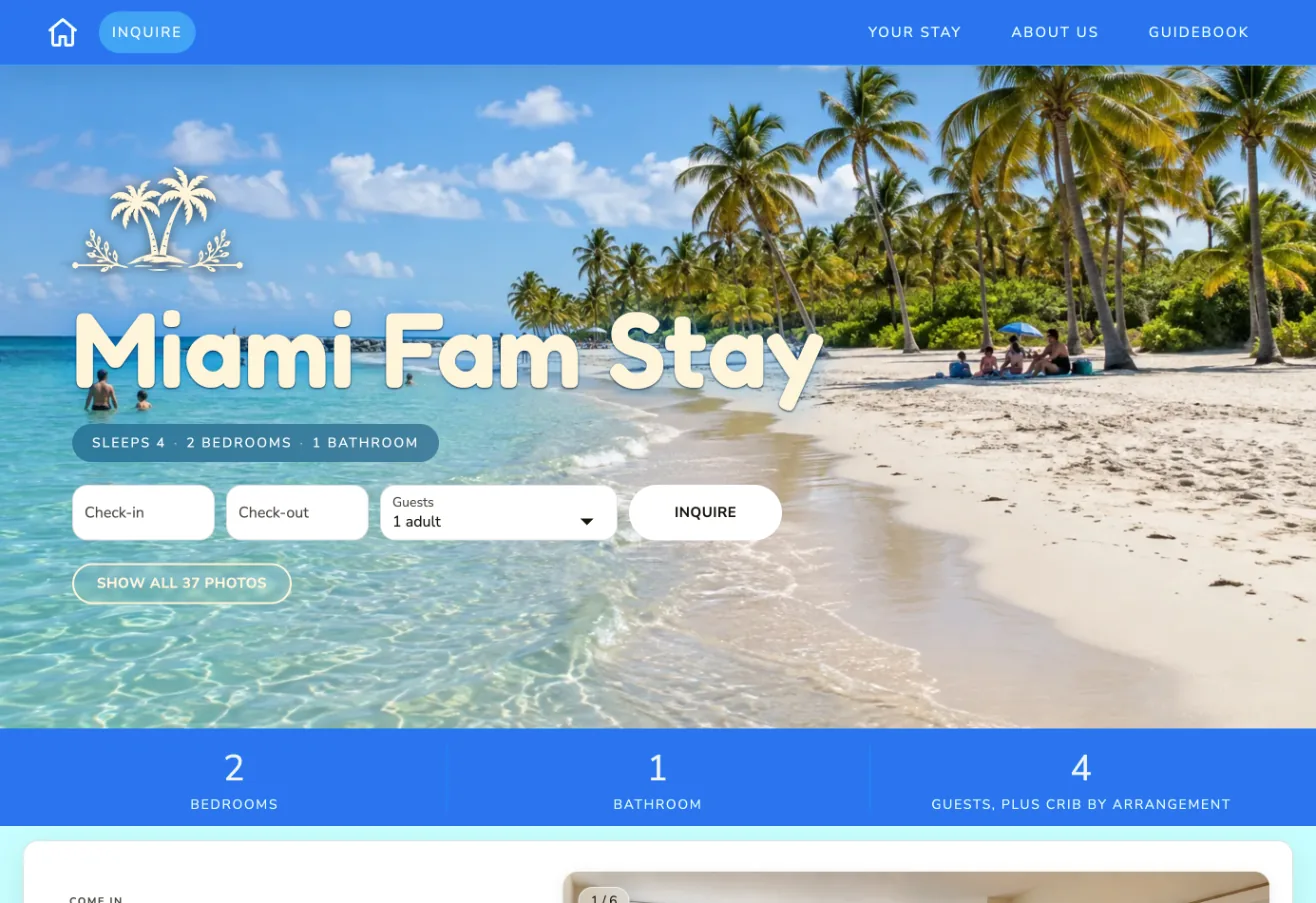
The Hero Masthead on the Miami Fam Stay website
Fig. 1.1 — Hero. Our most used Masthead. One photo fills the whole screen, with the name of your place and the date box over it. We use it when a home has photos that are ready to impress.
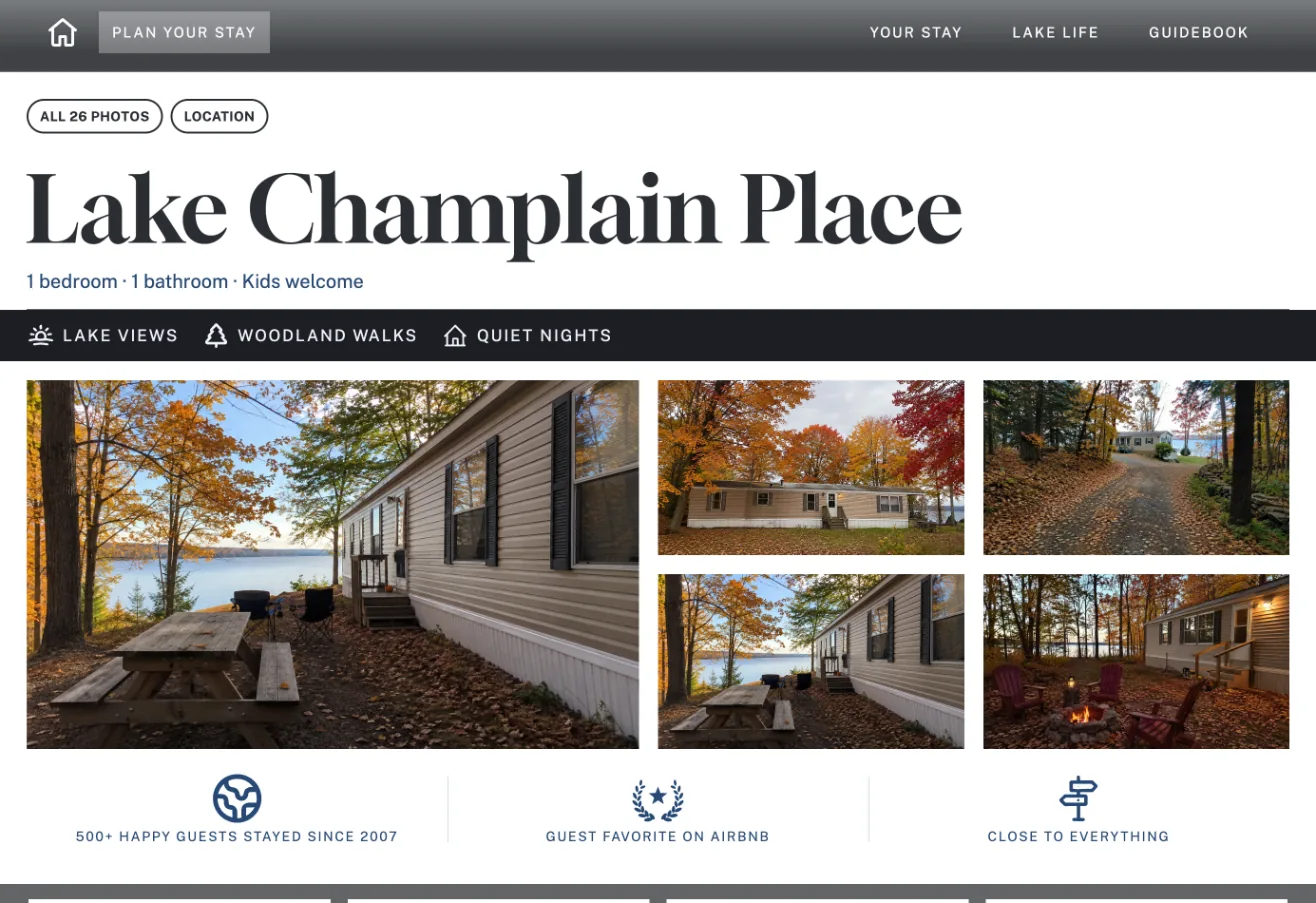
The Split Masthead on the Lake Champlain Place website
Fig. 1.2 — Split. The name of your place gets its own line at the top, with one large photo beside four smaller ones. We choose it when a home is best shown from several angles.
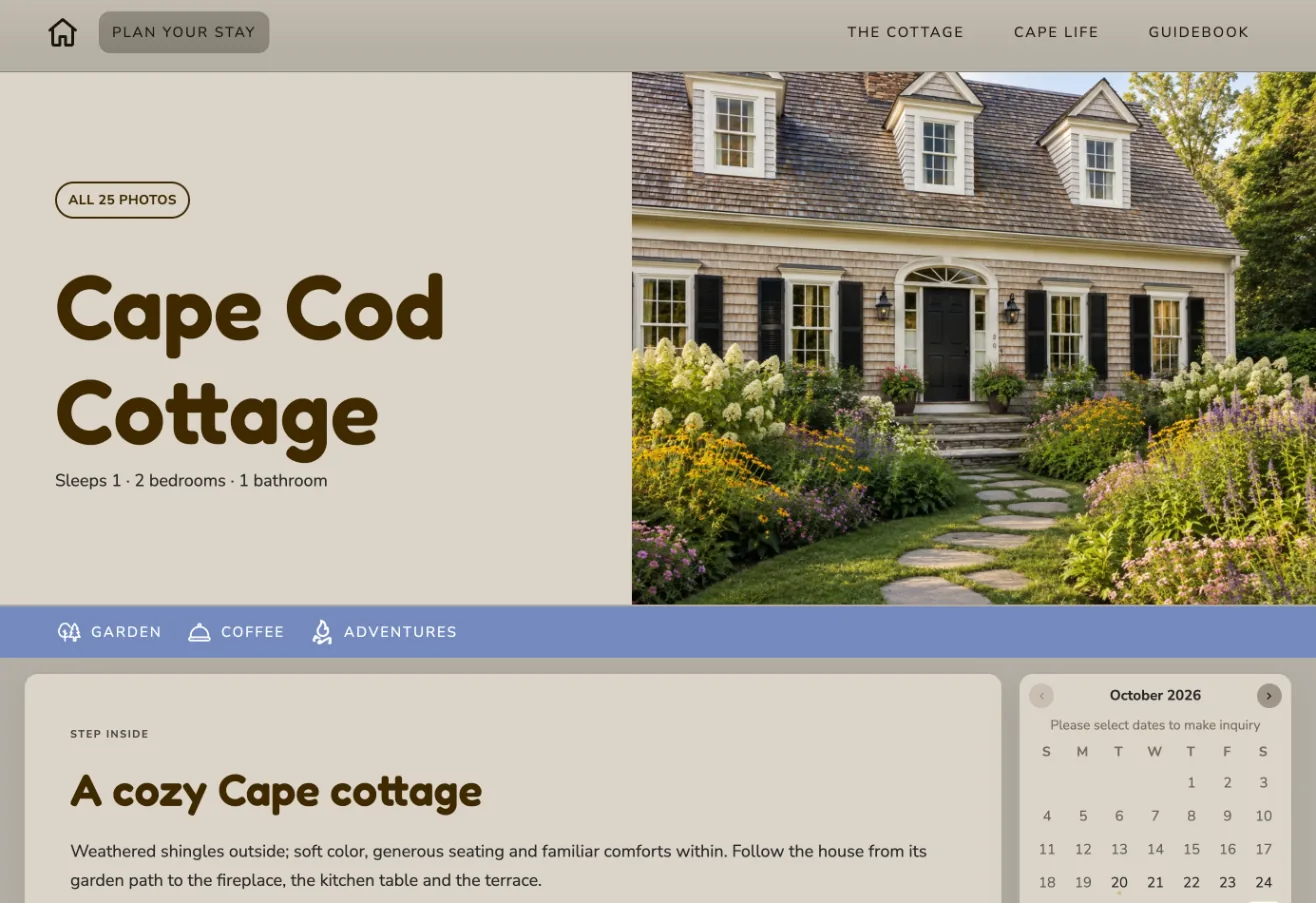
The Editorial Masthead on the Cape Cod Cottage website
Fig. 1.3 — Editorial. The name of your place on the left, one large photo on the right. We use it when the name and the story of your place deserve as much attention as the photo.
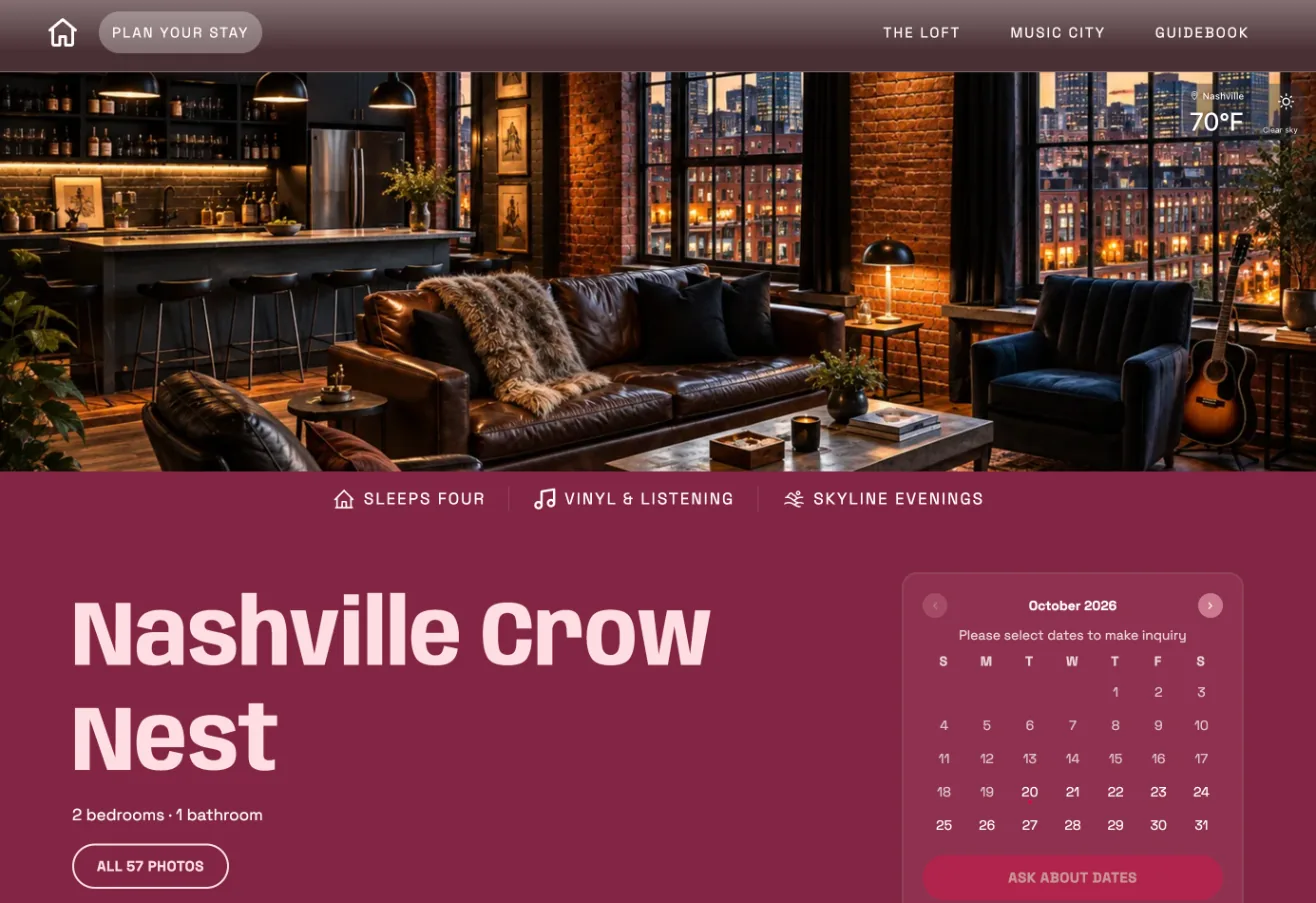
The Bottom Masthead on the Nashville Crow Nest website
Fig. 1.4 — Bottom. The photo comes first, and the name of your place and the date box sit below it. We use it to let a strong photo speak before any words.
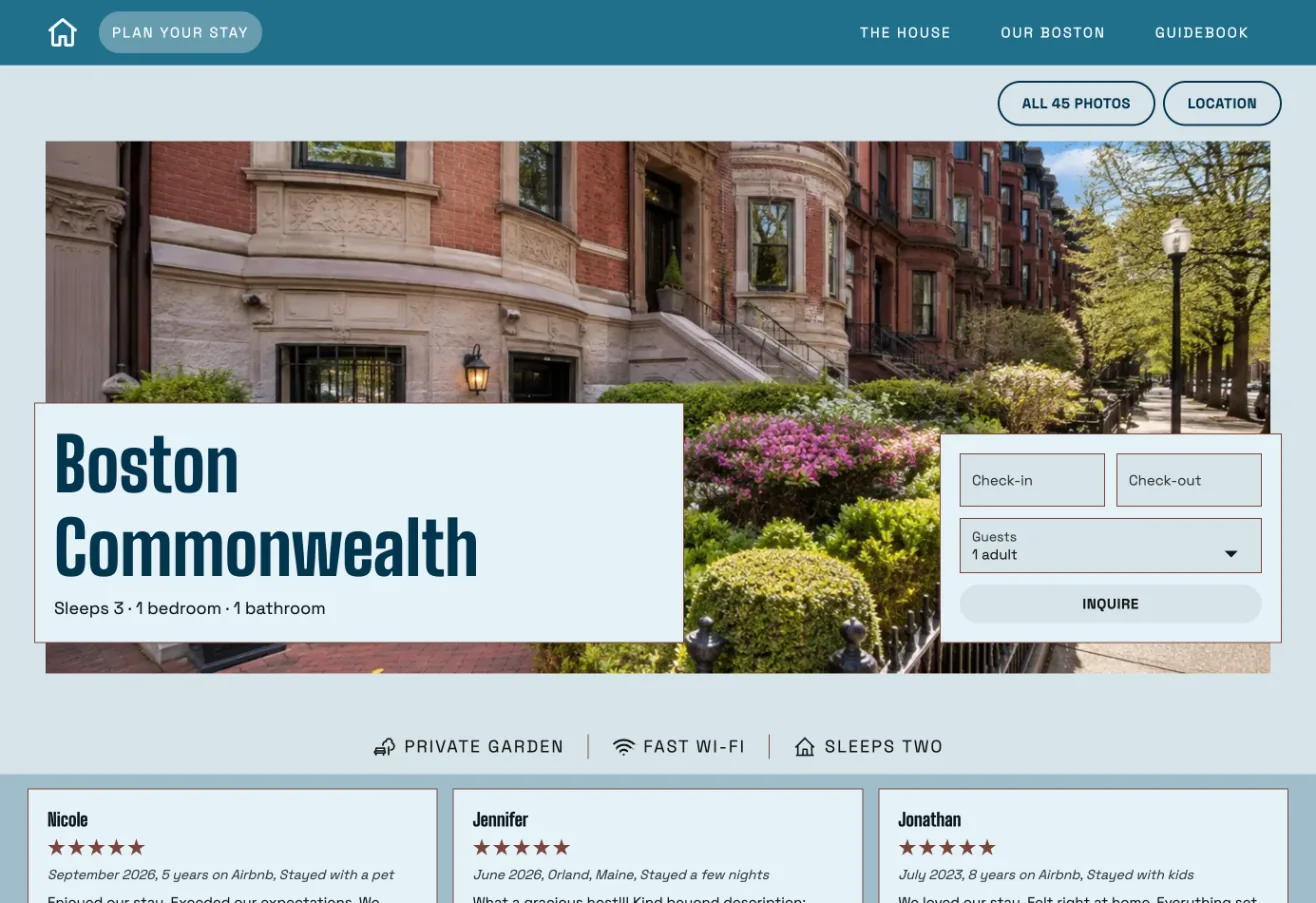
The Frame Masthead on the Boston Commonwealth website
Fig. 1.5 — Frame. The photo is framed by the page, with the name of your place and the date box set into it. We use it for a calm, tidy look, like a picture on a wall.
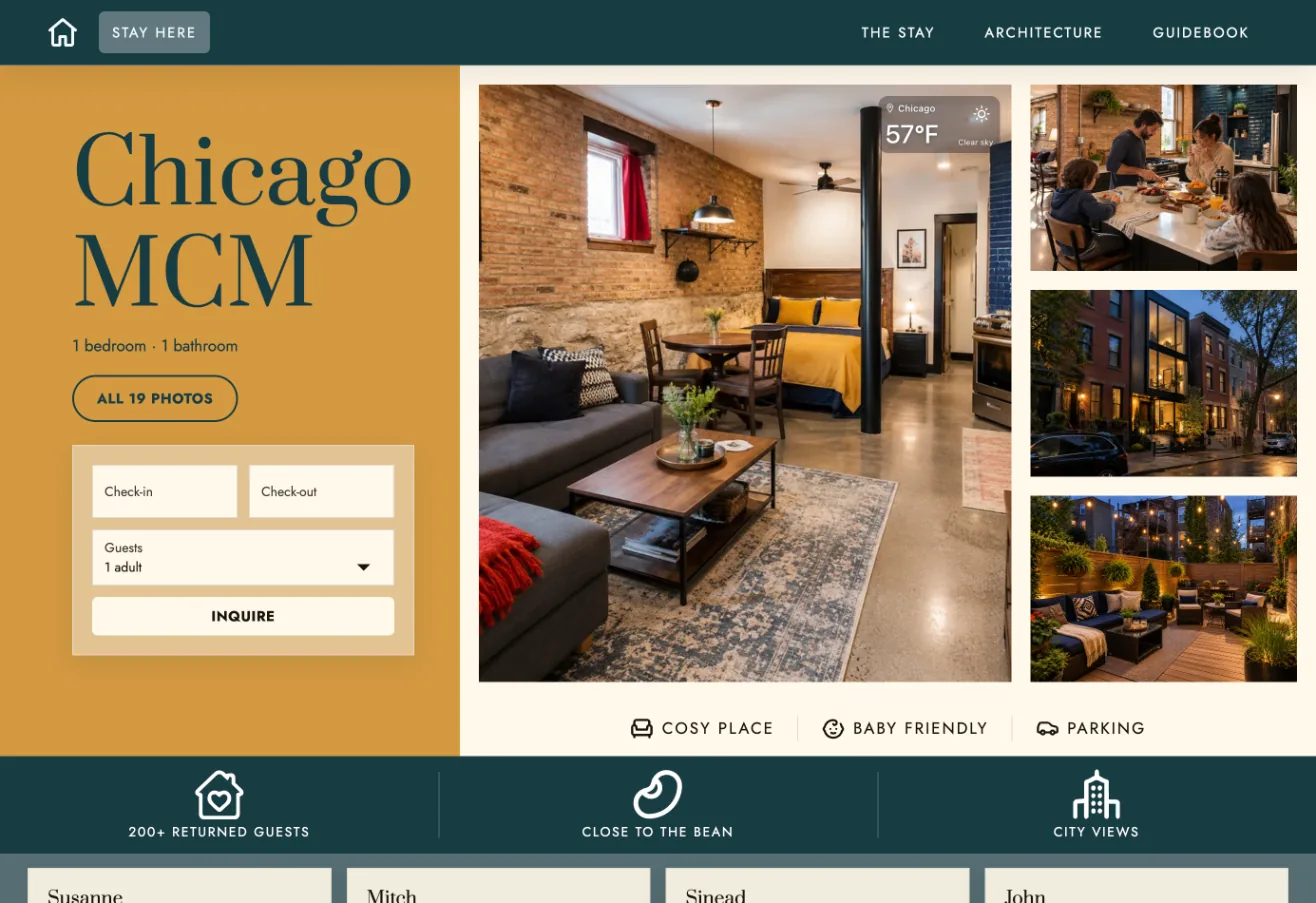
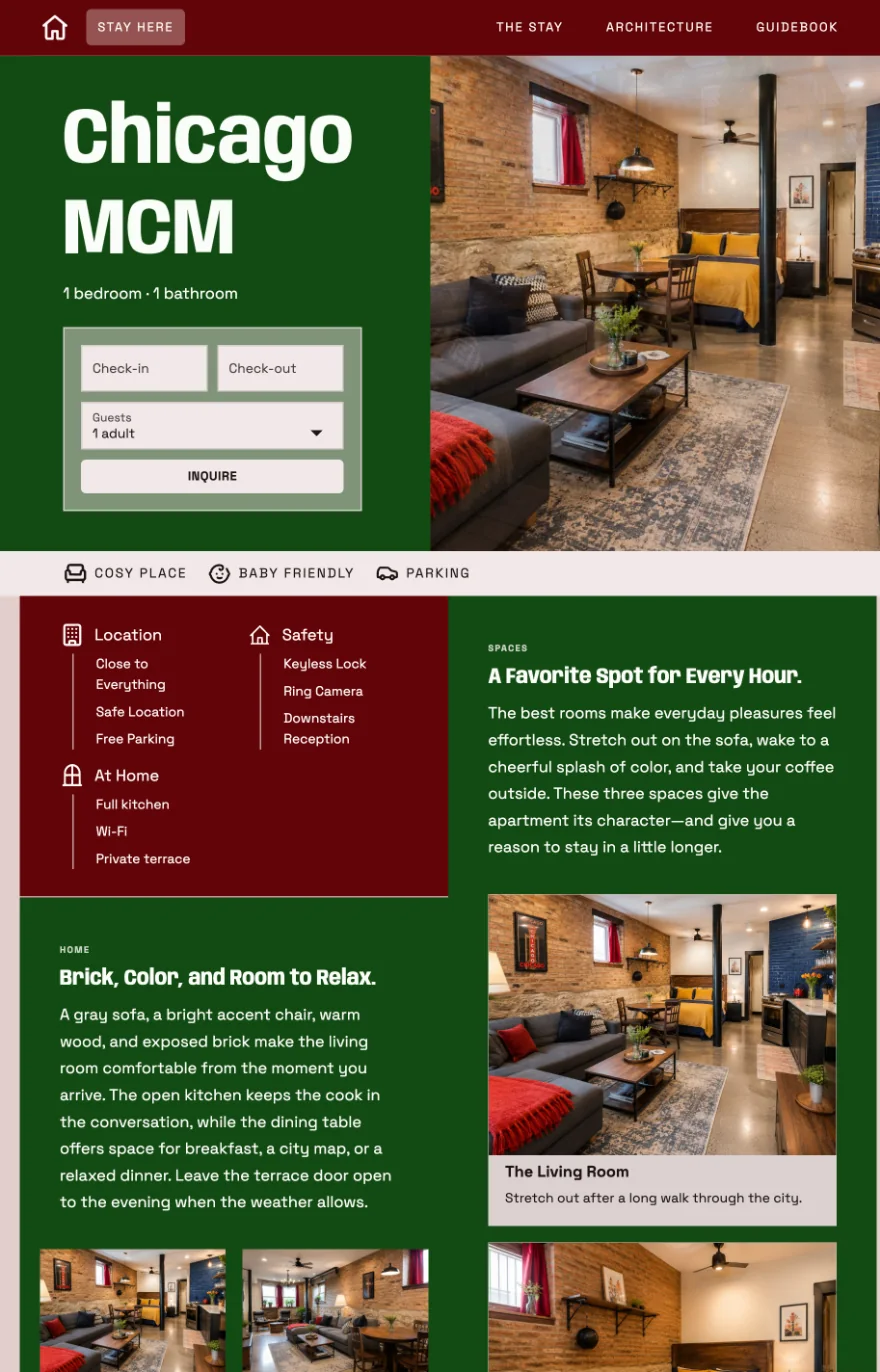
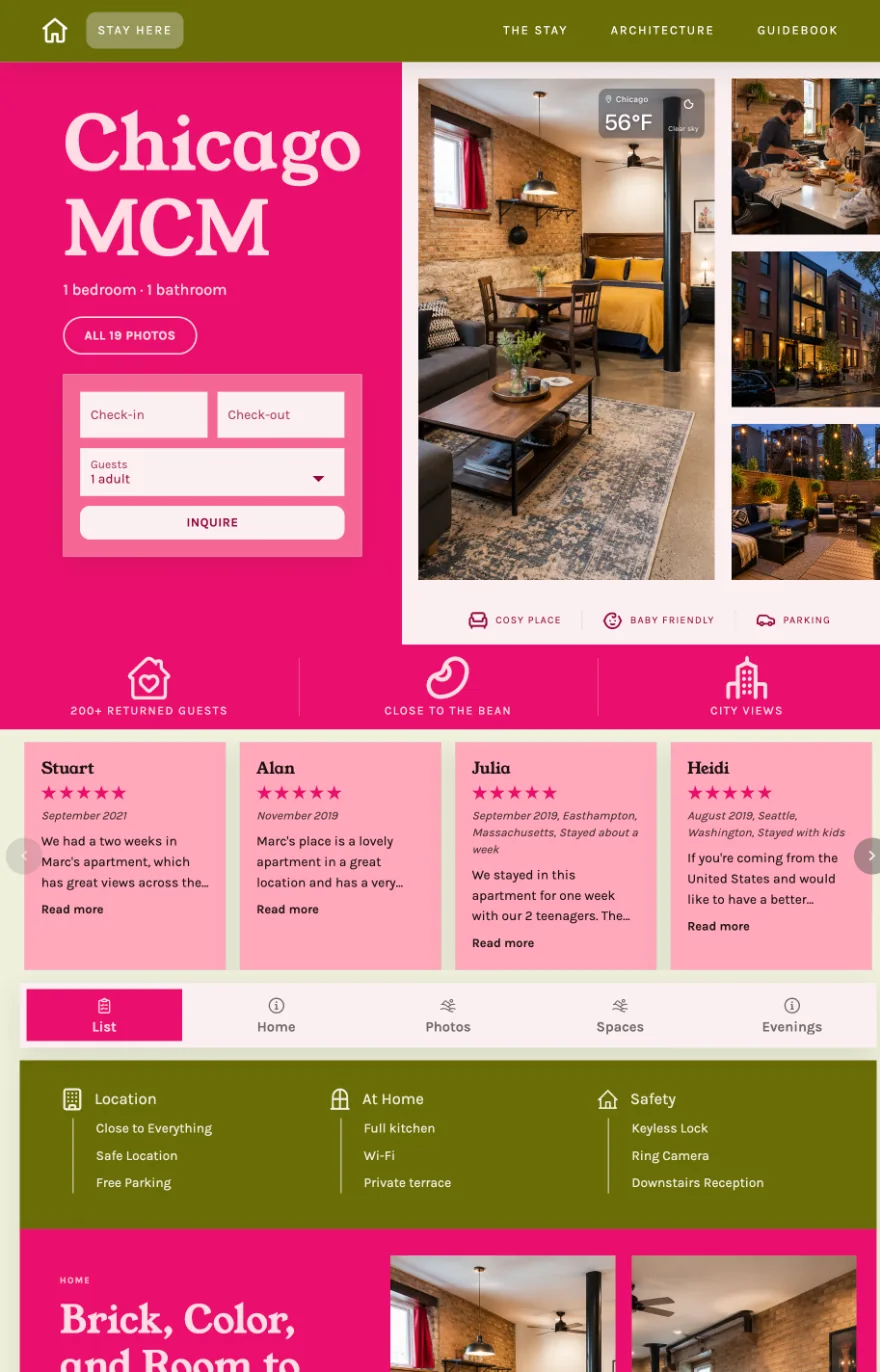
The Gallery Masthead on the Chicago MCM website
Fig. 1.6 — Gallery. The name of your place and the date box sit on a color panel beside a gallery of photos. We use it when a home has several good photos rather than one.
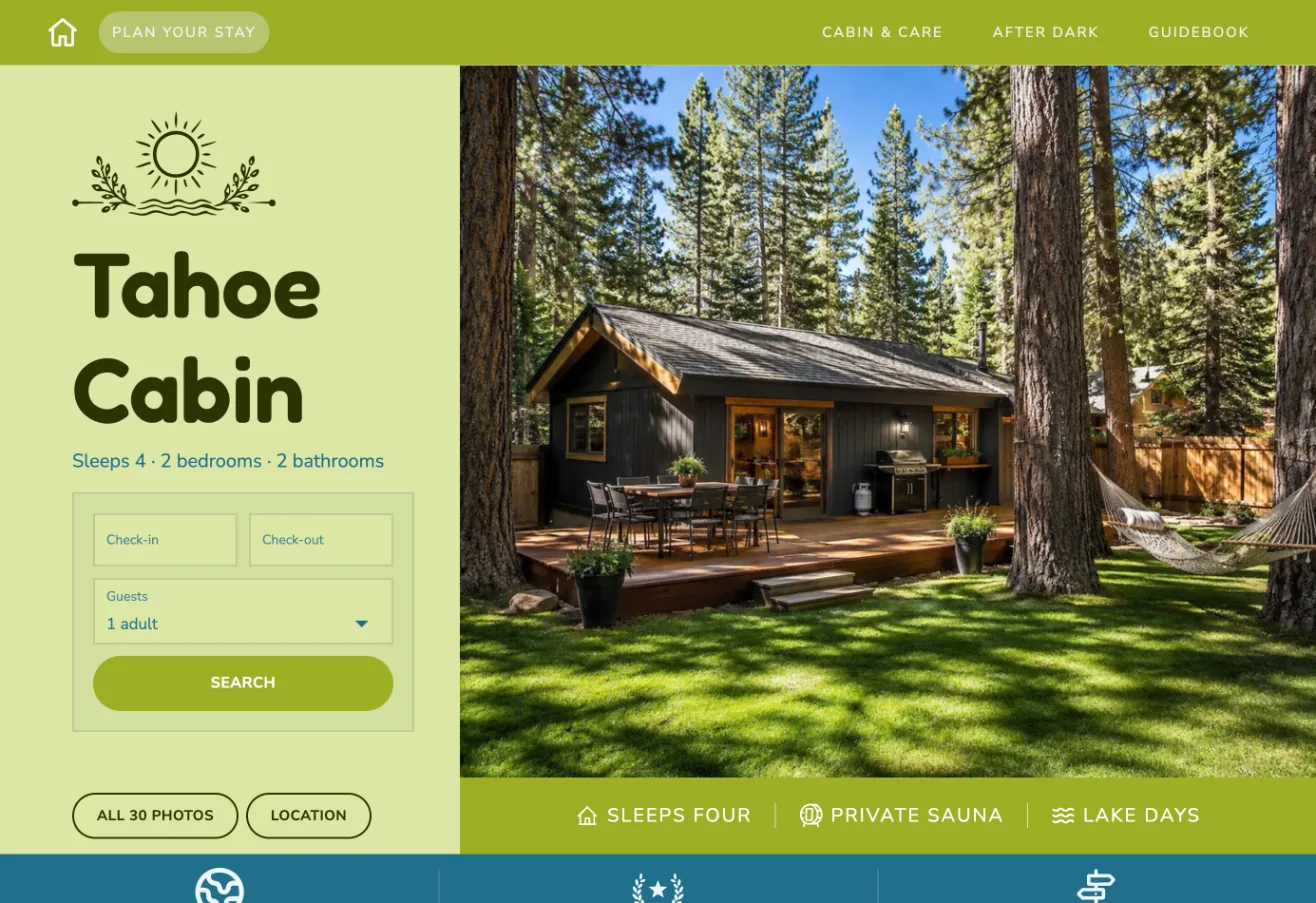
The L-shape Masthead on the Tahoe Cabin website
Fig. 1.7 — L-shape. The name of your place and the date box run down the left, and one photo fills the rest. We use it when the date box should always be in sight.

2. Page menu

The Rail and the Jump strip: a guide that stays with your guests as they read.

Some pages are long, and halfway down guests can lose their way. So we designed the Rail, a panel along the side of the page that stays on the screen as guests scroll. The Rail holds the date box and a list of everything on the page. The Rail can sit on the left or the right. On pages where a side panel would crowd things, the same list runs across the page as the Jump strip. And where a page needs no menu at all, the page can run in one wide column or in two columns side by side.

What this means for you: wherever guests are on the page, asking you about dates is one click away.
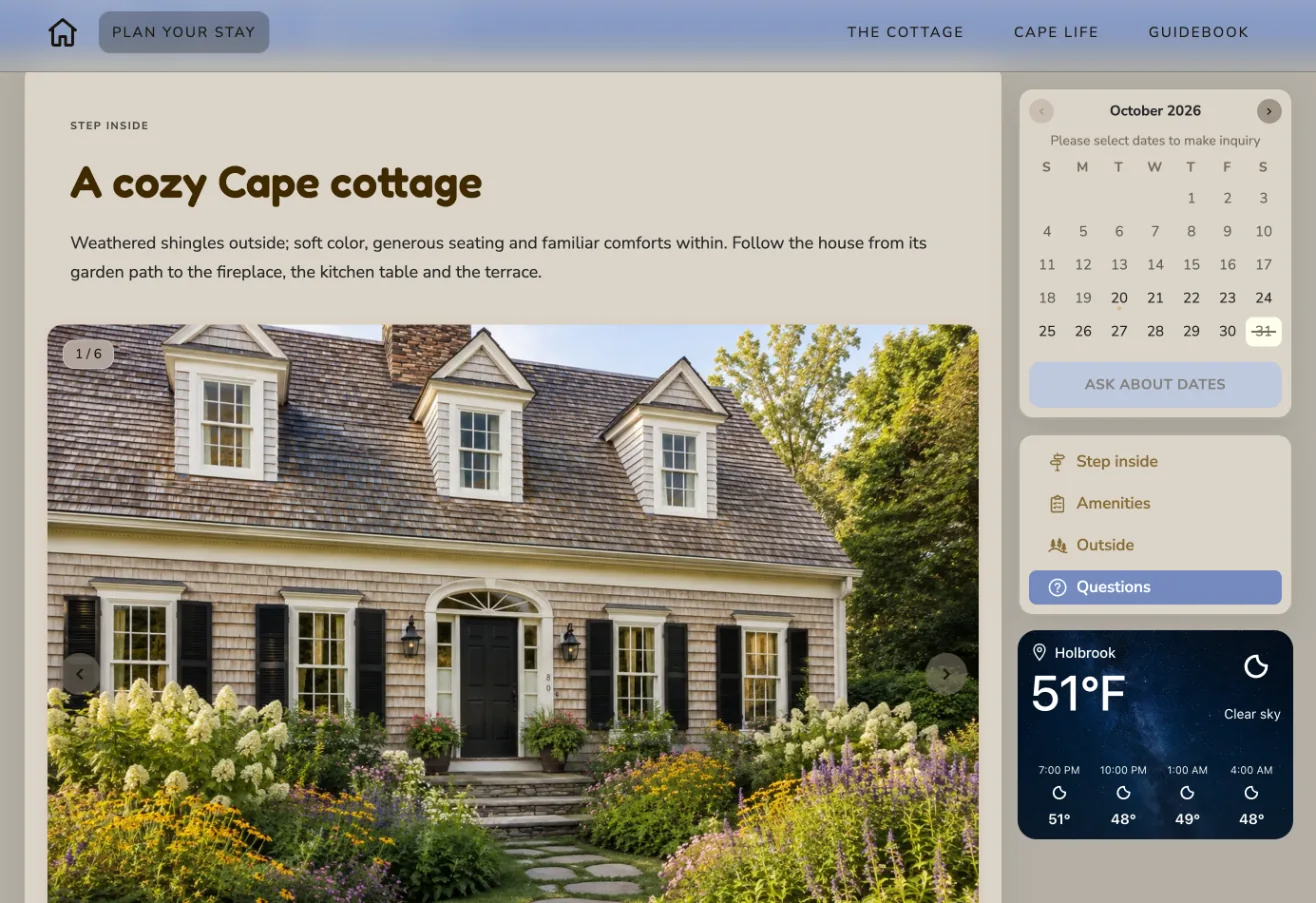
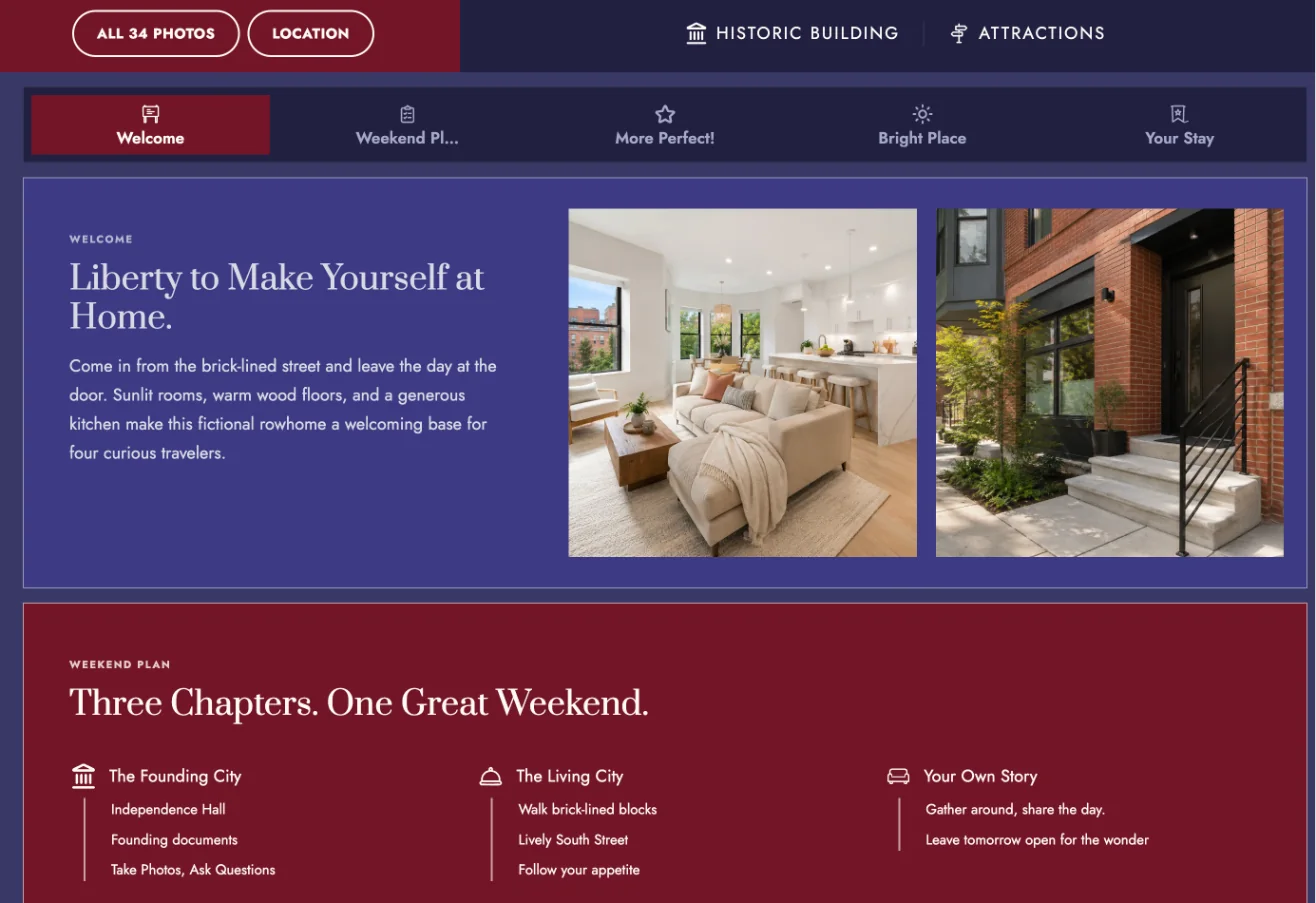
The Rail on the Cape Cod Cottage website
Fig. 2.1 — The Rail. We keep the date box and the list of the page along the side, so the date box and the list never scroll out of reach.
The Jump strip on the Philly Home website
Fig. 2.2 — The Jump strip. When a side panel would crowd the page, we run the same list across the top instead.
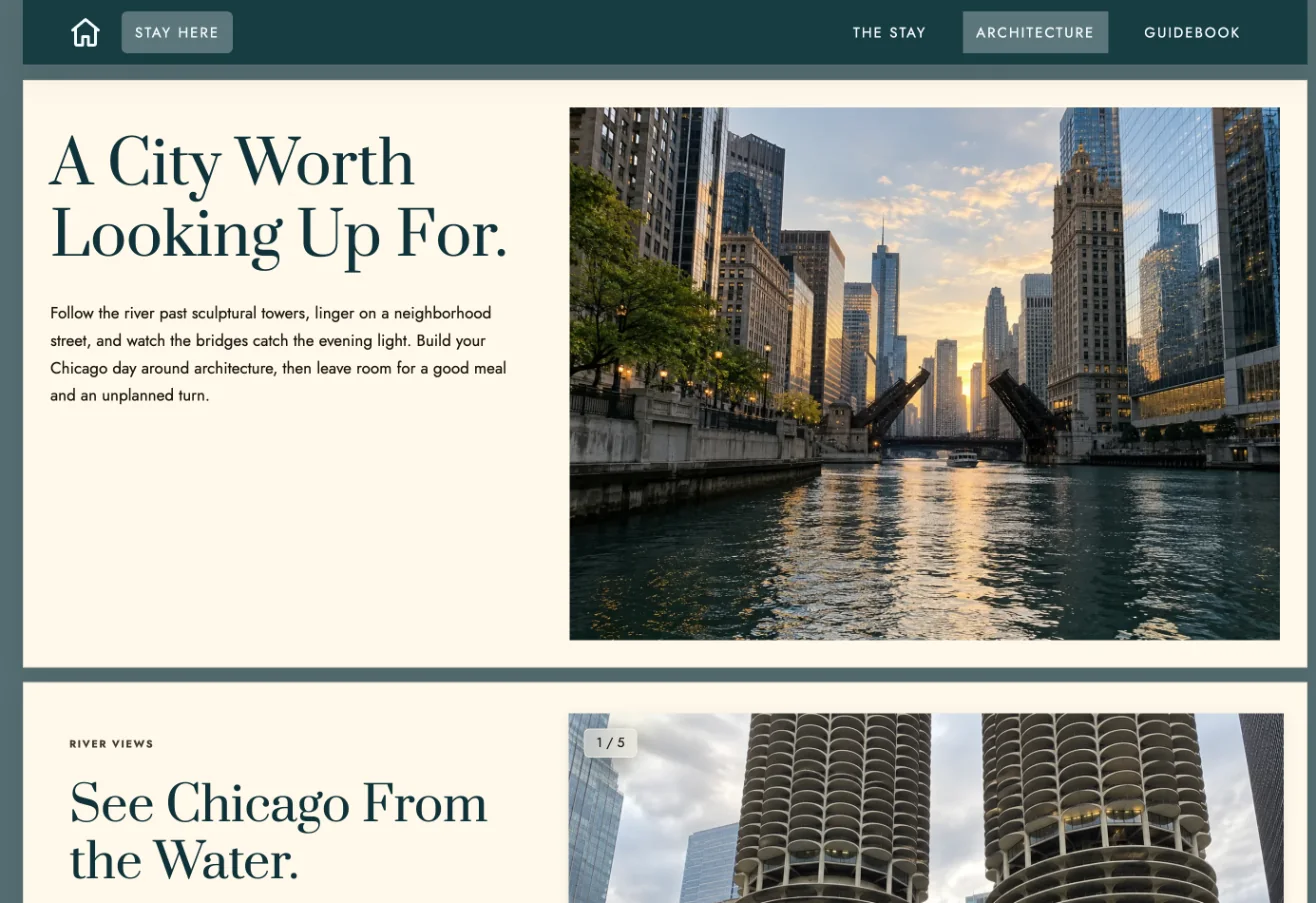
A page with no menu, in one column, on the Chicago MCM website
Fig. 2.3 — No menu, one column. For a page that tells one story from top to bottom, each part of the page runs the full width.
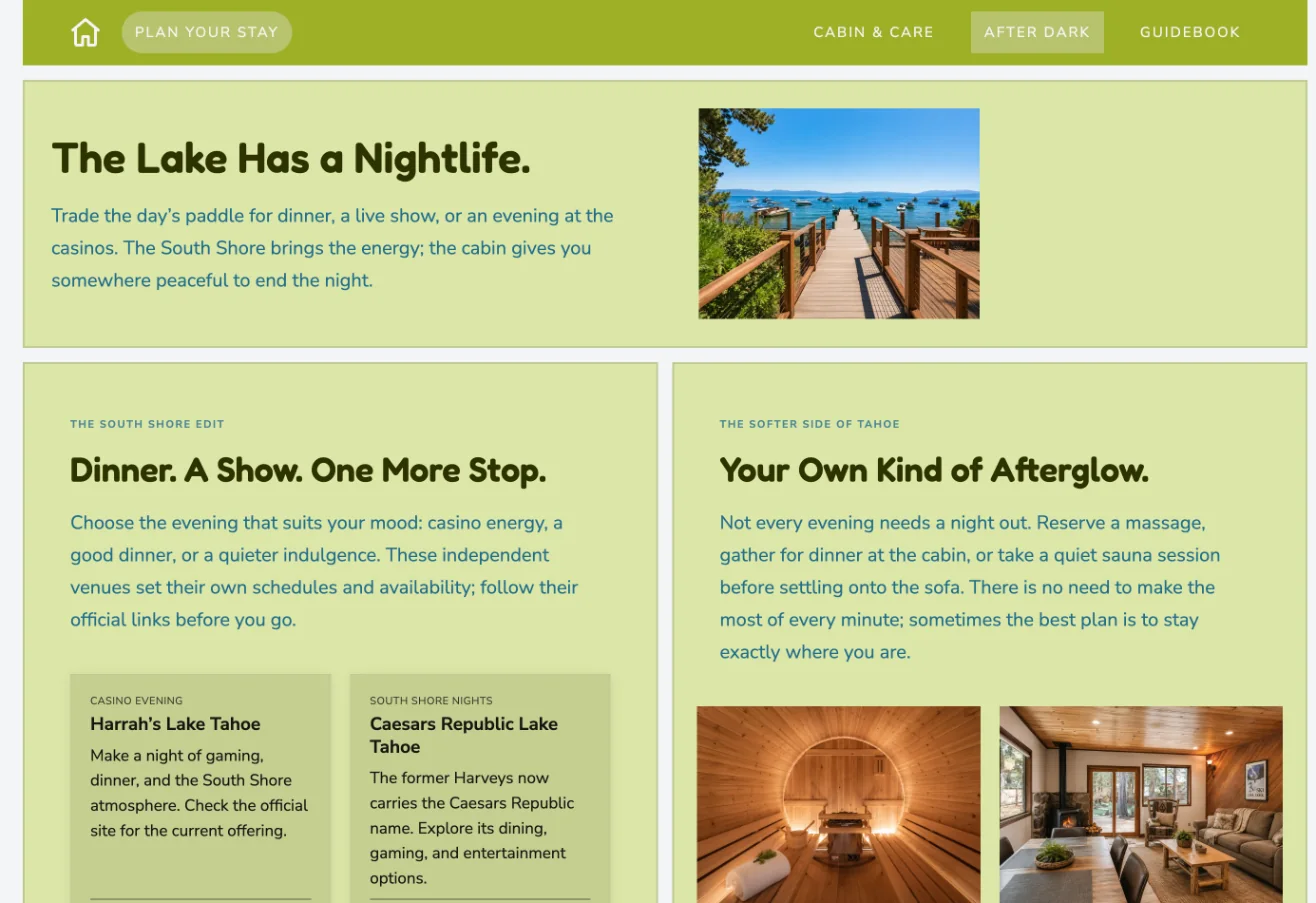
A page with no menu, in two columns, on the Tahoe Cabin website
Fig. 2.4 — No menu, two columns. For a page with many shorter parts, we set them side by side so guests see more at once.

3. Points of interest, Trust band and Weather

Right under the photo: what makes your place special, why guests trust you, and what it’s like there today.

We placed Points of interest, the Trust band and Weather right under the Masthead, where every guest will see them. Points of interest name what makes your home special, like “Private sauna” or “Lake days”. The Trust band runs across the whole page and shows proud facts, like “500 happy guests since 2007” or “Guest favorite on Airbnb”. Each fact in the Trust band can link to where it came from, such as your Airbnb listing or your Reviews page, so guests can check the fact for themselves. Weather shows today’s weather at your home, so guests can picture themselves there.

What this means for you: your home’s strongest selling points, and your years of good hosting, are in plain view before a guest reads a single paragraph.
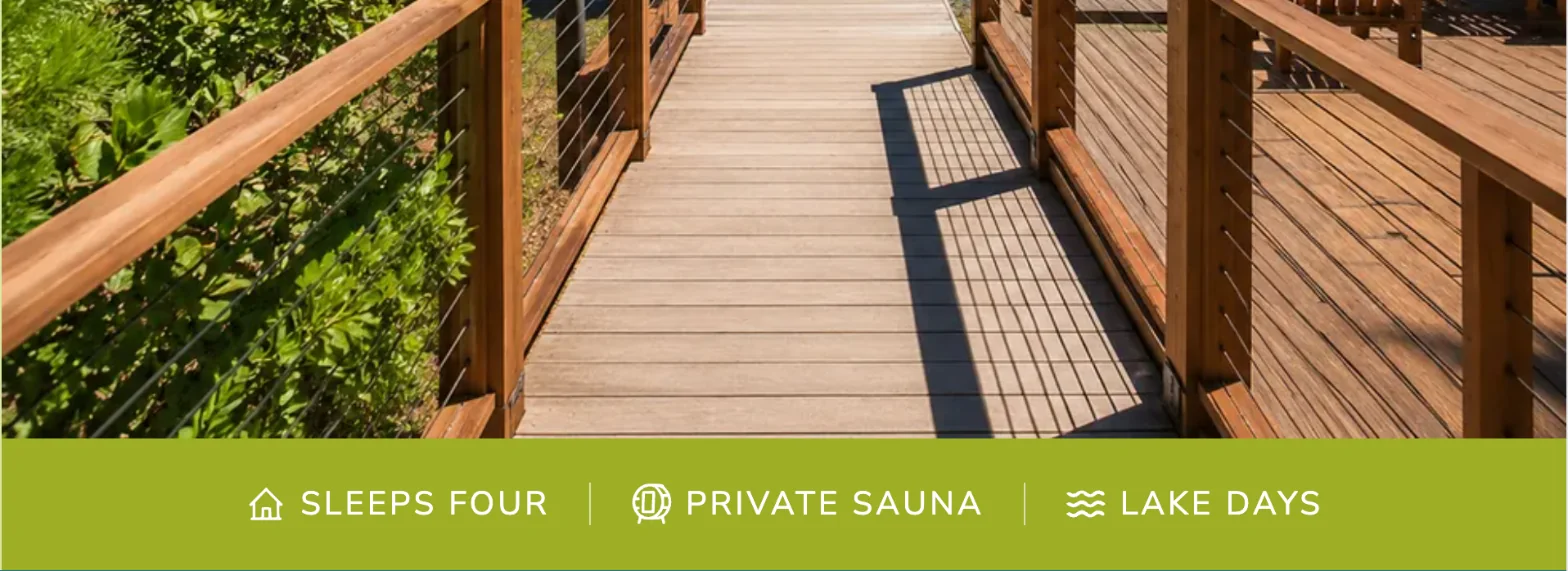

Points of interest under the photo on the Tahoe Cabin website
Fig. 3.1 — Points of interest. We put the home’s strongest selling points right under the photo, where every guest looks next.
The Trust band on the Tahoe Cabin website
Fig. 3.2 — The Trust band. We run proud facts across the whole page, because trust is what turns a visitor into a booking.
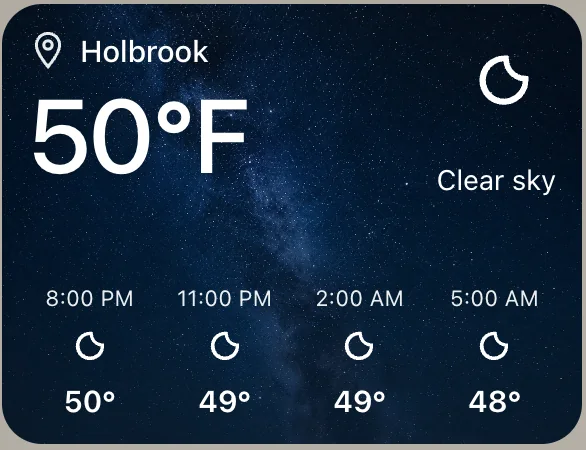
Weather on the Cape Cod Cottage website: today and the next hours
Fig. 3.3 — Weather. We show today’s weather and the next hours, so guests can picture their stay.

4. Reviews

Your past guests’ own words, right on your website.

New guests trust other guests more than any description. So we put your Reviews on your own website, next to the date box, where guests decide whether to book.
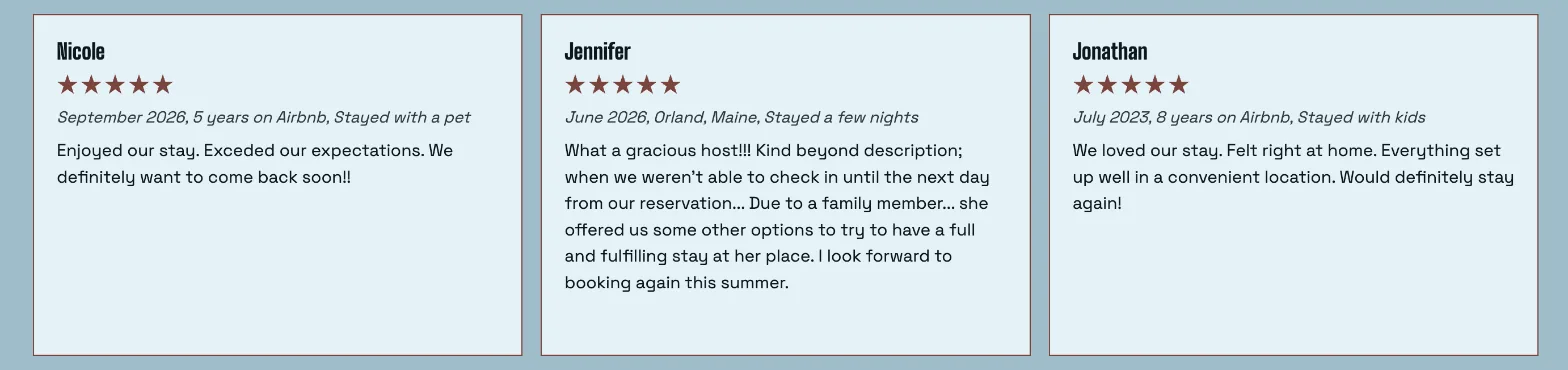
Reviews on the Boston Commonwealth website
Fig. 4.1 — Reviews on the website. Each Review is a card with the guest’s name, the stars and when the guest stayed, so each Review reads as a real guest’s words, not a quote.

How reviews get on the website

1. We bring your Reviews over for you. We copy your Reviews from Airbnb, Vrbo, Booking.com or Google. Each Review links back to where the guest first wrote it, so new guests know it’s genuine.

2. You decide which Reviews show. You can put your favorite Reviews at the top, fix a typo in a Review, or hide a Review.
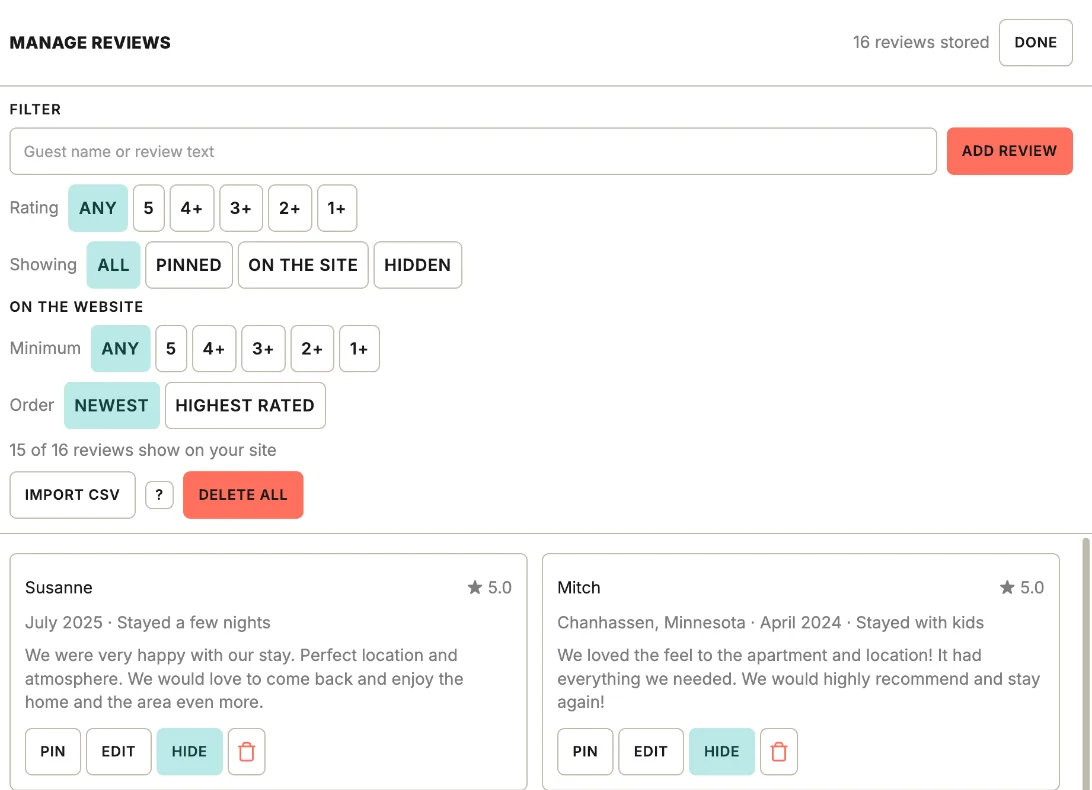
Managing Reviews: pin, edit, hide
Fig. 4.2 — Managing your Reviews. Pin, Edit and Hide sit on every Review, so you decide which Reviews guests see.

3. New Reviews keep coming. After a stay, you can email a guest a link to write a Review. The link works once and lasts sixty days. The guest’s Review waits, hidden, until you approve it.
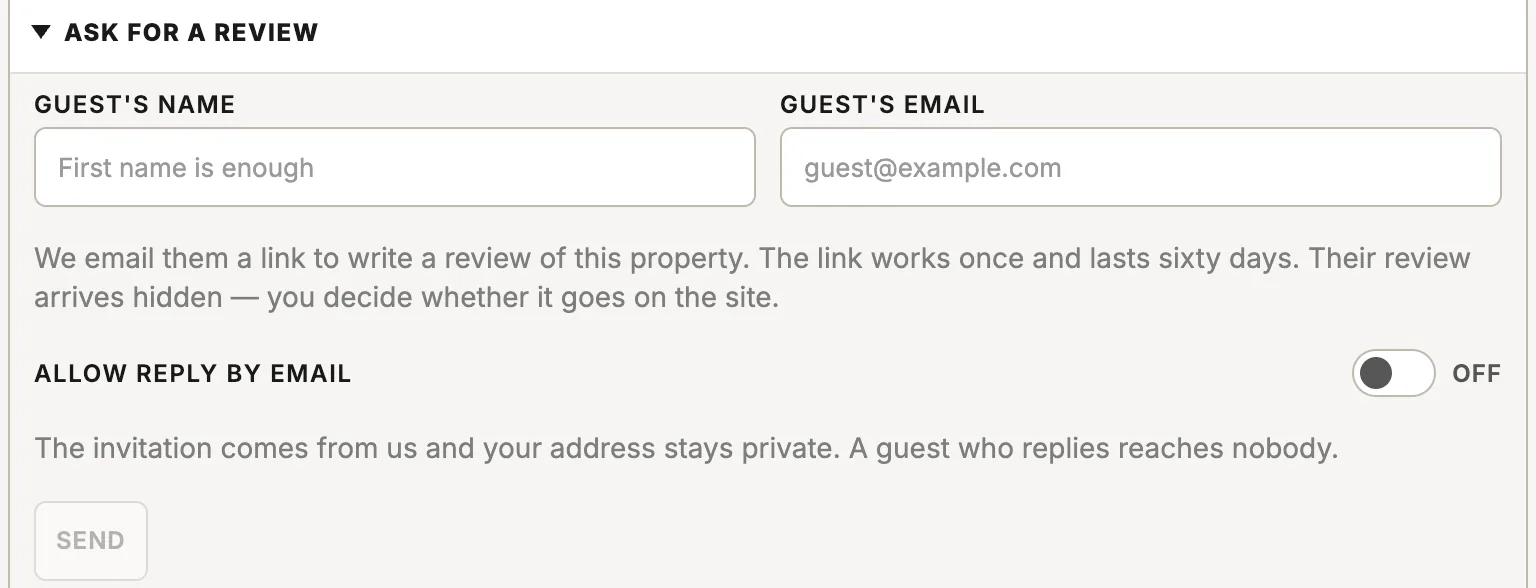
Ask for a review: the guest’s name and email
Fig. 4.3 — Ask for a review. We kept the request to the guest’s first name and email, so asking a guest for a Review takes seconds.

What this means for you: the praise you’ve already earned keeps working for you, and a new guest’s Review appears on your website only after you approve it.

5. Sections

The building blocks of every page.

Every home has its own story, and Sections let each page tell your home’s story in the right order. Under the Masthead, each page is built from Sections stacked one after another. There are Text, Photos, Price cards, Highlights, Cards, Map, List, Social feed and Contact Sections. You can add, remove or reorder Sections at any time.

What this means for you: when something about your home changes, like a new hot tub or new rates, you update your website yourself, with no one to hire and nothing to pay.
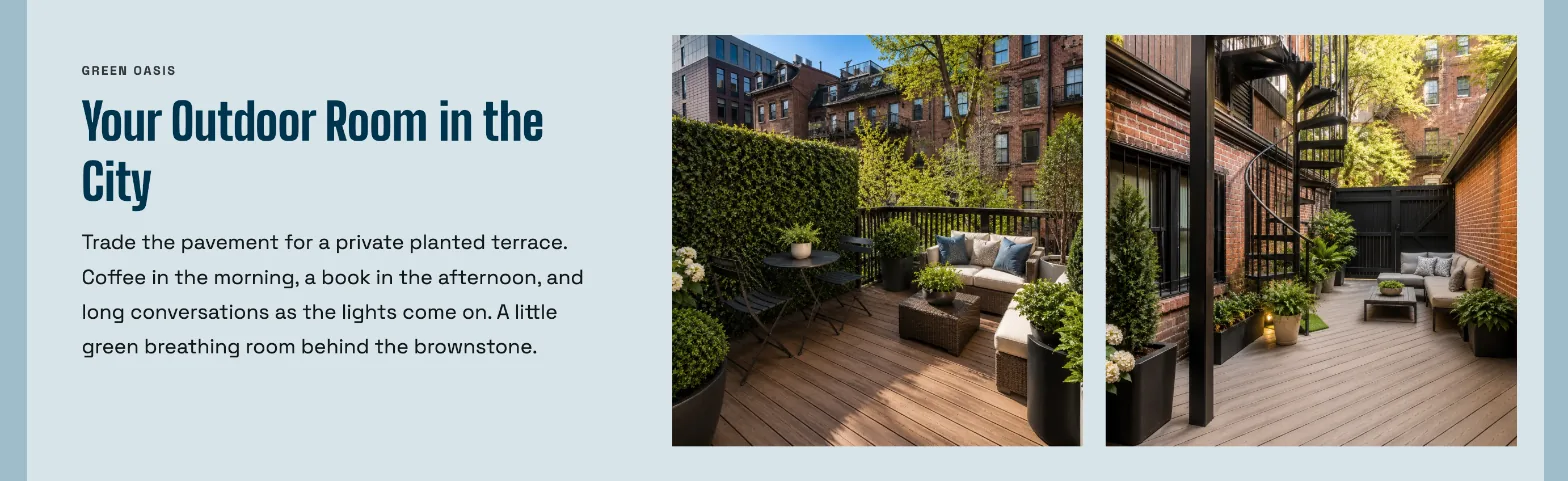
Words with photos on the Boston Commonwealth website
Fig. 5.1 — Text. A Text Section with photos: the story on one side and photos on the other, so guests read and see at the same time.
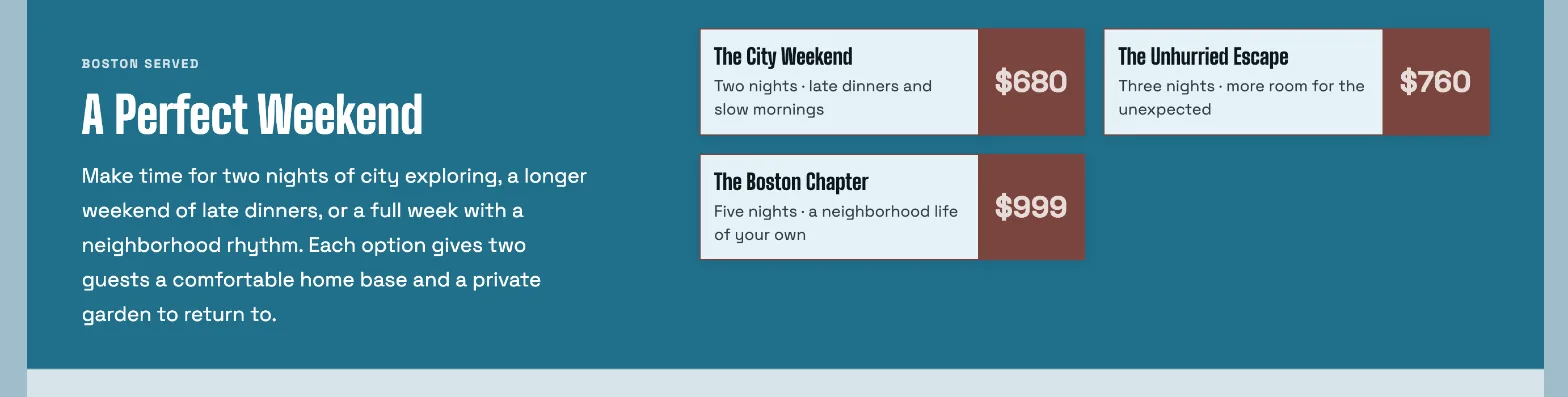
Rates on the Boston Commonwealth website
Fig. 5.2 — Price cards. Each stay gets its own card with a clear price, so guests can compare at a glance.
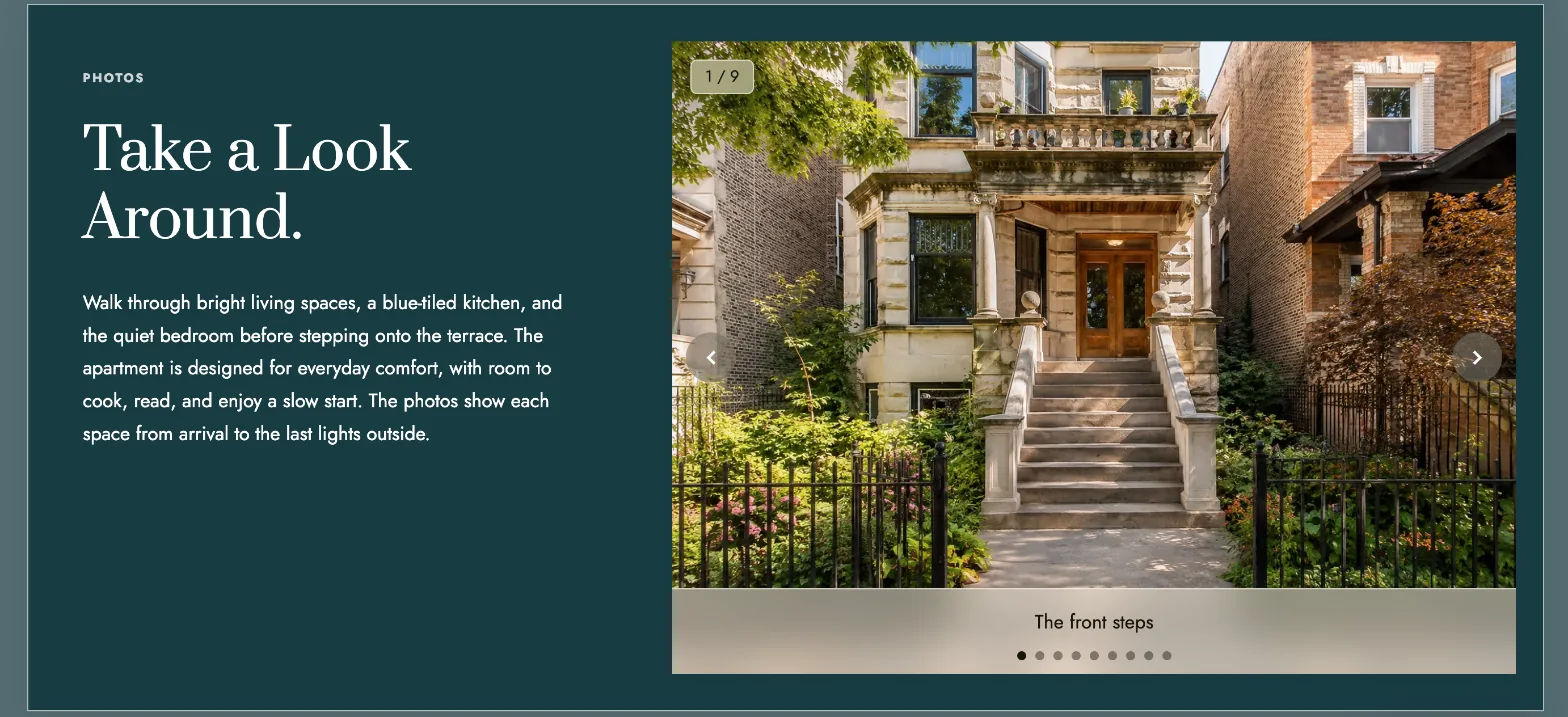
A photo slideshow on the Chicago MCM website
Fig. 5.3 — Photos. A slideshow: many photos in the space of one, each with its own caption.
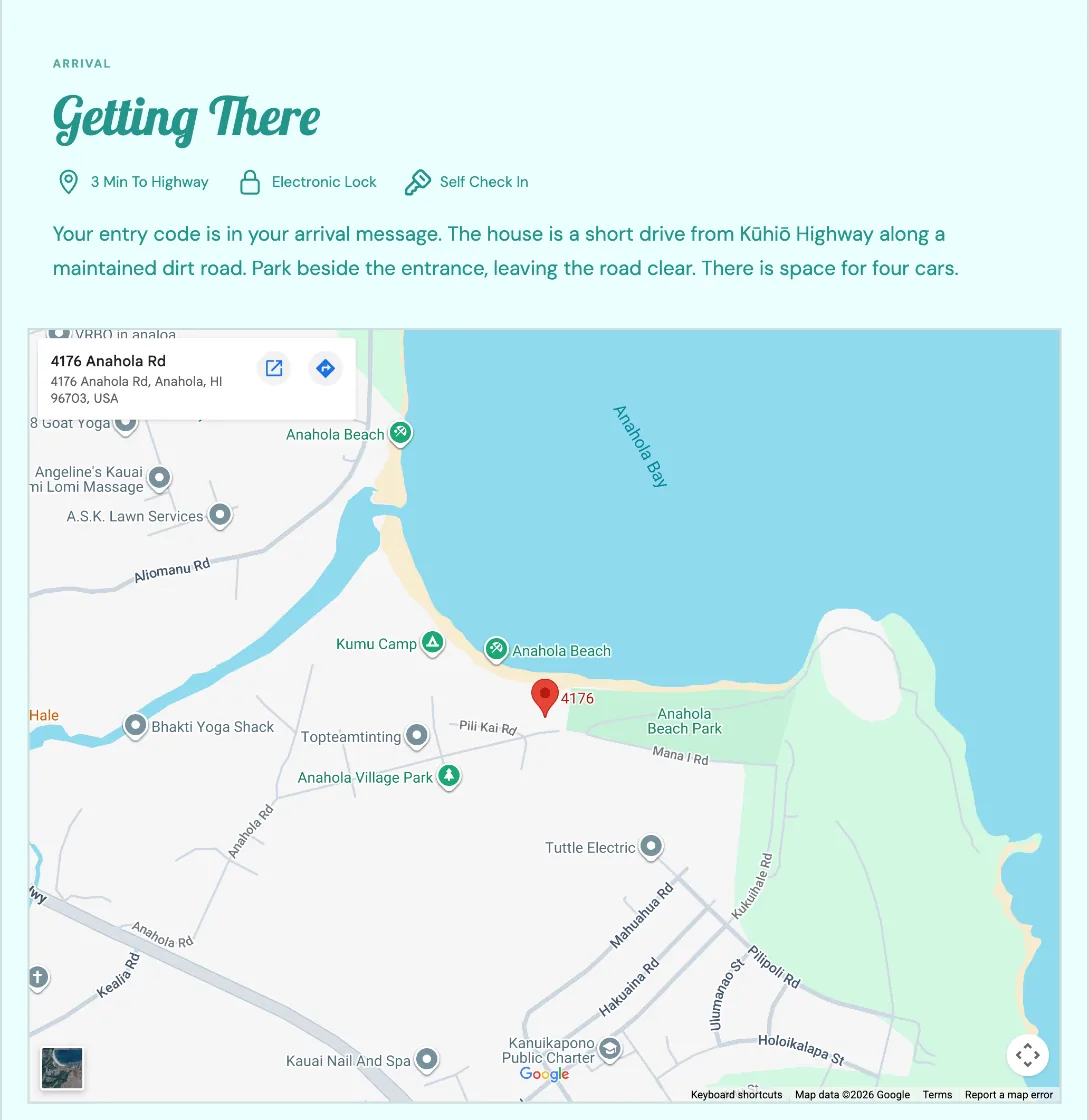
A map to the door on the Kawaii website
Fig. 5.4 — Text with a map. Directions to your door in words first, then the map, so arriving feels easy.
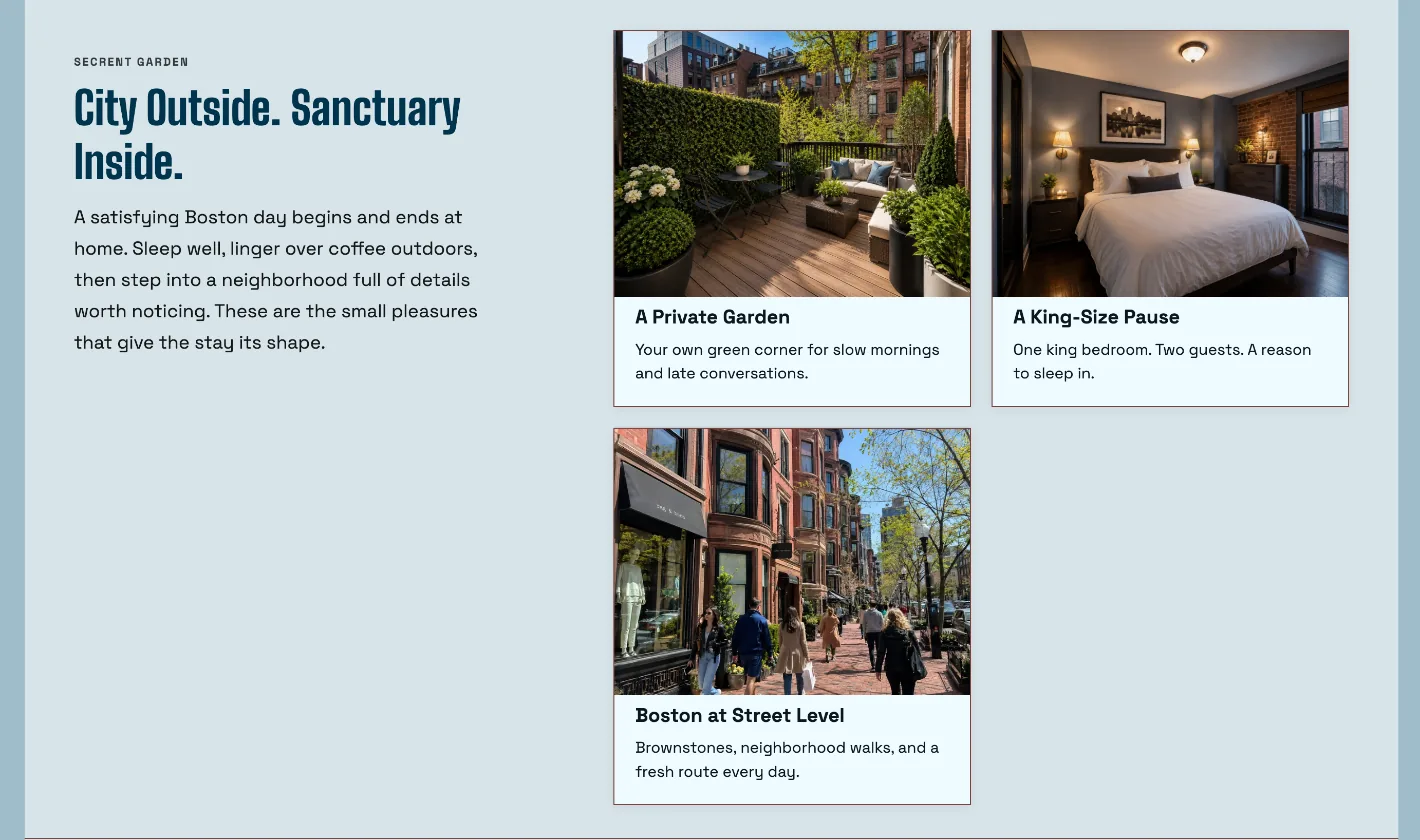
Photo cards on the Boston Commonwealth website
Fig. 5.5 — Highlights. A photo, a title and one line for each feature, so guests can take in every feature quickly.
A list of what is included on the Chicago MCM website
Fig. 5.6 — Text with a list. The facts grouped under clear headings, easy to read at a glance.

6. Skin and Theme

The whole look of your website, changed with one click.

Your website should feel like your place, whether it’s a mountain cabin, a beach house or a city loft. A Skin is a complete look: colors, letter styles and arrangement, designed to work together. A Theme is the colors alone. When you change the Skin or the Theme, every page of your website changes at once, and your photos and words stay exactly where they are. Here is the same website in four Skins.

What this means for you: your website can always match the feel of your home, and freshening it up takes one click, not a redesign.
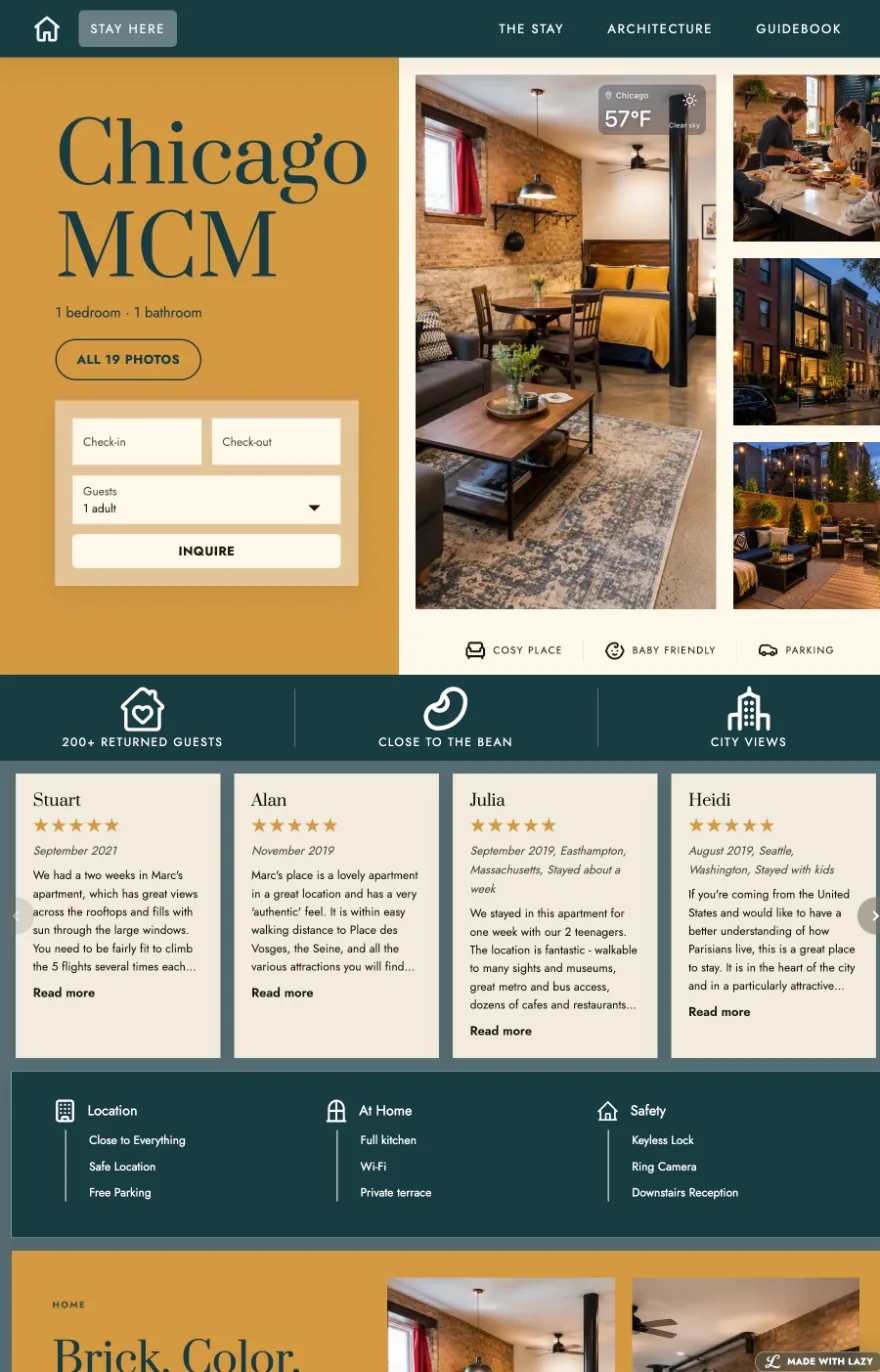
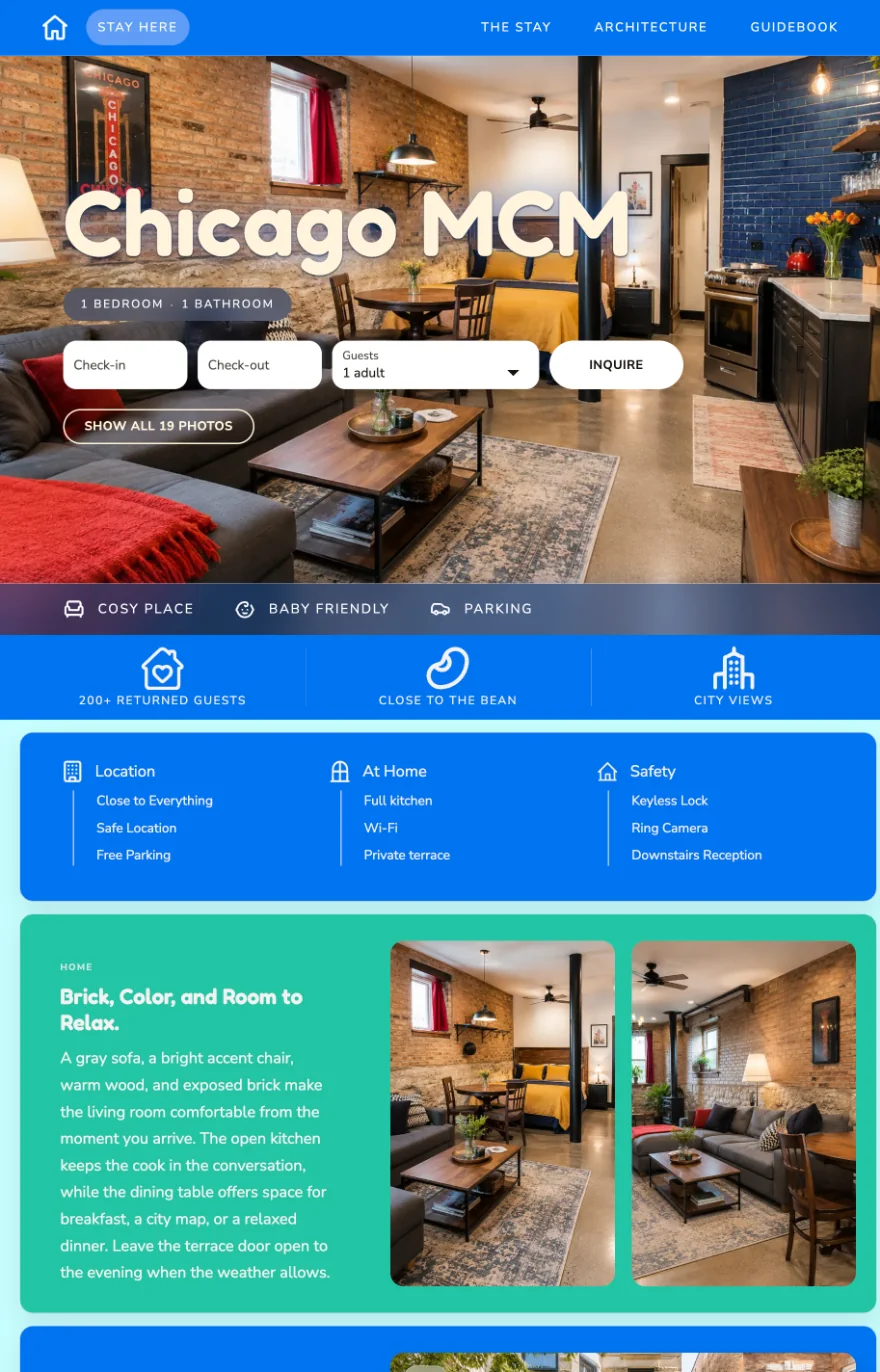
The Chicago MCM website in the Chicago Skin
Fig. 6.1 — Chicago. Mustard and deep teal with a classic letter style, for a warm, grown-up feel.
The Chicago MCM website in the Miami Skin
Fig. 6.2 — Miami. Bright blue with the photo across the whole top, for a sunny, open feel.
The Chicago MCM website in the Mission Brick Skin
Fig. 6.3 — Mission Brick. Deep green and brick red with bold letters, for a strong, rustic feel.
The Chicago MCM website in the Virginia Skin
Fig. 6.4 — Virginia. Rose pink and olive with a soft letter style, for a gentle, homey feel.

7. Phone, tablet and computer

One website, arranged for every screen.

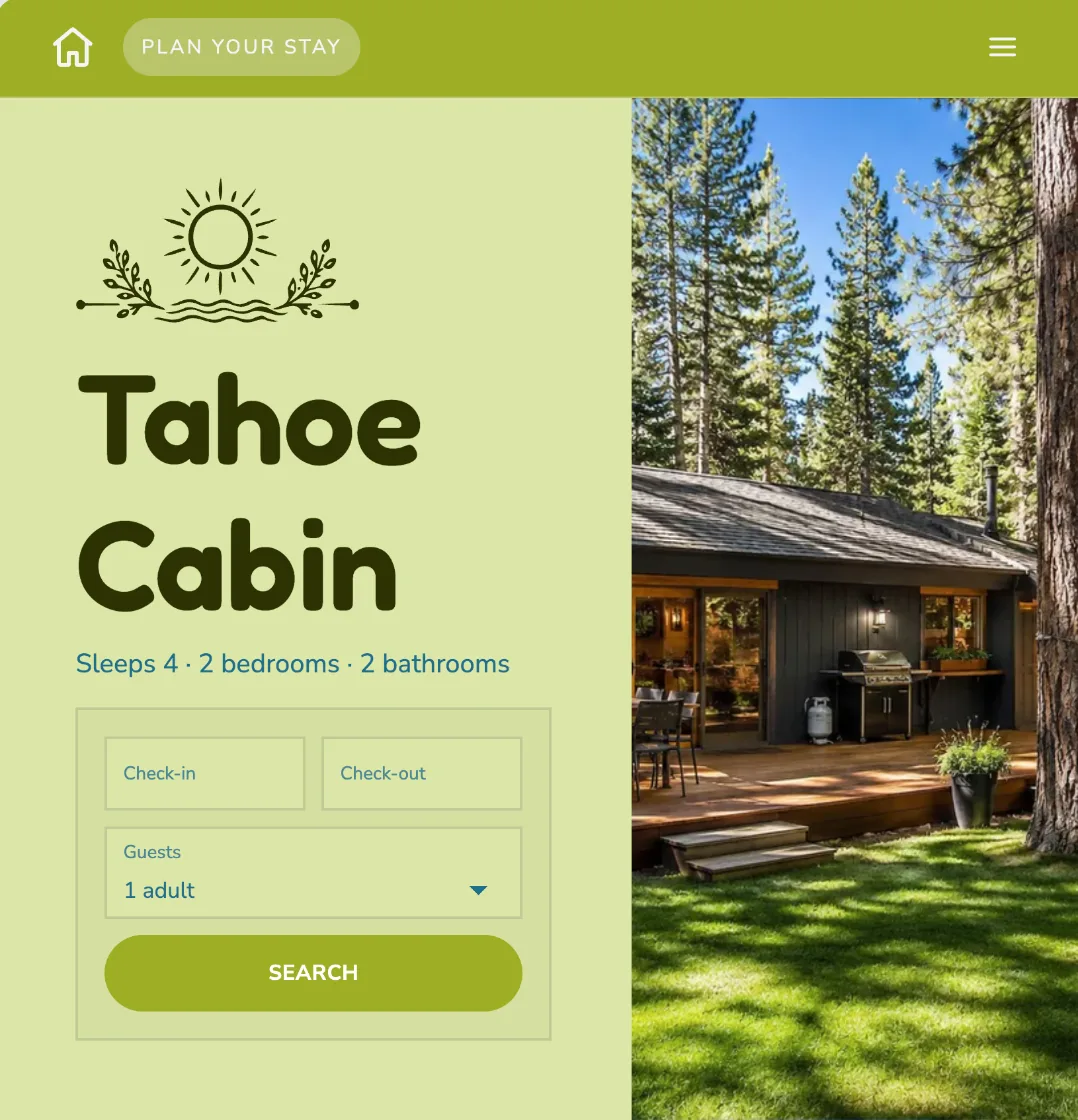
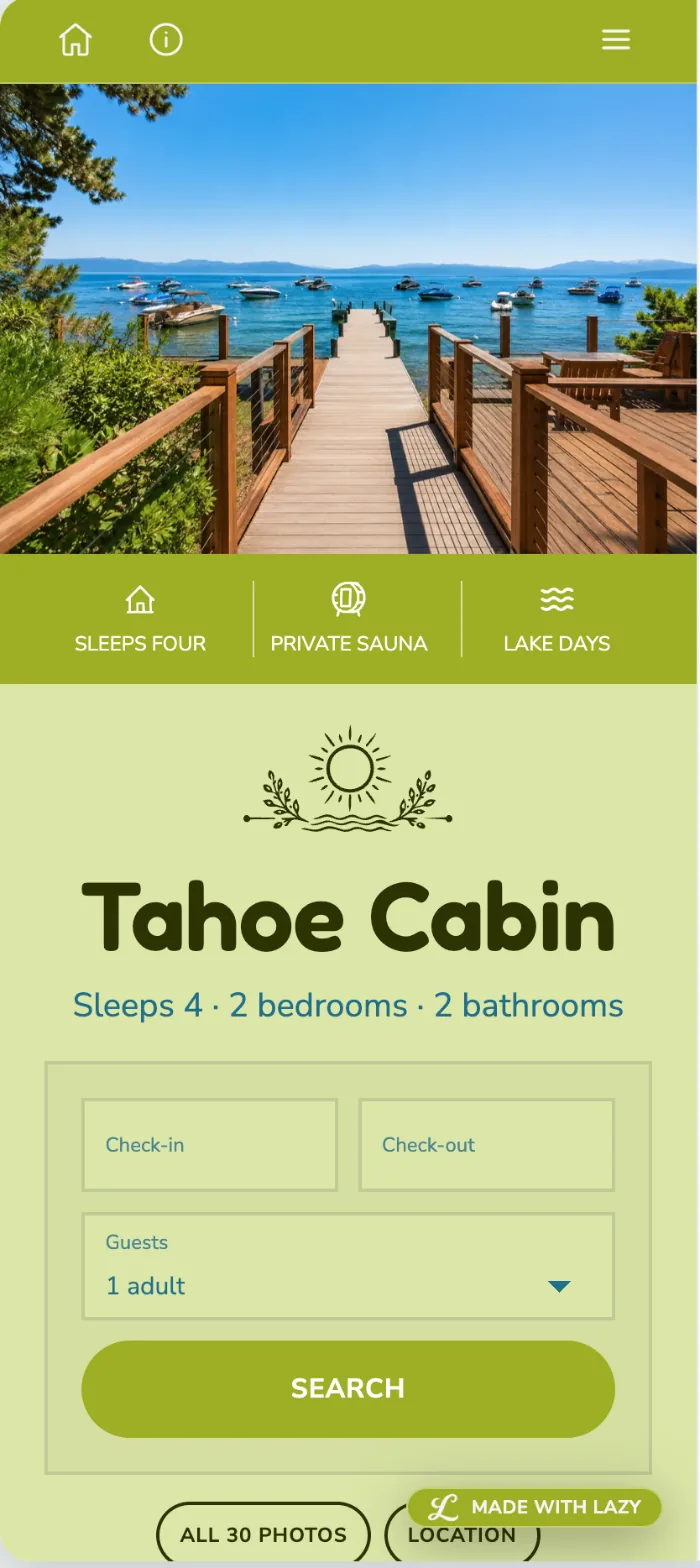
Most guests first see your website on their phone. So a Lazy website doesn’t simply shrink to fit a small screen. The website rearranges itself: photos, text and the date box move so everything is easy to read and easy to tap. Here is the same website on a phone, a tablet and a computer.

What this means for you: guests who find you on their phone can learn about your home and ask about dates right there, without pinching or squinting.
The same website on a computer
The same website on a tablet
The same website on a phone
  • Fig. 7.1 — Phone. On a phone we stack the photo, the name of your place and the date box one under the other, so nothing is squeezed.
  • Fig. 7.2 — Tablet. On a tablet there is room to set the name of your place and the date box beside the photo.
  • Fig. 7.3 — Computer. On a computer the full arrangement opens up, with room for everything.

Like What You See? Get LAZY™

We’ll build your vacation rental website. You make it yours.
No risk, no lock, no credit card required.